


How to Automate WhatsApp Business: App and API Guide


Published: Oct 30, 2026
WhatsApp Business automation lets you send messages and reply to customers without writing every message by hand. You can start with the free WhatsApp Business app, which supports greeting messages, away messages and quick replies. Or you can use the WhatsApp Business API to connect messaging to your business systems.
The app works well for small teams that handle conversations manually. The API gives you more room when you need to automate order updates, appointment reminders, OTP codes, chatbot replies or campaigns.
This guide covers both options, how API automations run, the Meta rules you need to follow, and which automations to set up first.
What WhatsApp Business automation means
WhatsApp Business automation means sending or answering messages without someone writing each one. There are three main types:
- Automatic replies: Greeting messages, away messages, FAQ answers and chatbot replies to customers who contact your business.
- Event-triggered messages: Updates sent when something happens in your systems, such as an order shipping, a payment failing, an upcoming appointment or a login attempt.
- Scheduled or bulk messages: Offers, announcements and re-engagement messages sent to contacts who have opted in.
The WhatsApp Business app covers basic automatic replies. The API covers all three types, including messages triggered by your own systems.
Option 1: Automate with the WhatsApp Business app
The free WhatsApp Business app suits small businesses that manage customer chats from a phone or computer. Its automation tools are found under Business tools in Settings.
Set up automatic messages in the app
- Open Business tools. In WhatsApp Business, go to Settings and select Business tools.
- Set up a greeting message. Turn on the greeting message, write your welcome text and choose who should receive it.
- Set up an away message. Turn on the away message and write the reply you want customers to see when you are unavailable.
- Create quick replies. Under Quick replies, add up to 50 saved responses. See WhatsApp's quick replies guide. Type
/in a chat to insert one. On mobile, quick replies can include images and videos. - Organize conversations. Use Labels to group chats by status, such as new order, awaiting payment or follow-up. You can also set up a Catalog so customers can browse your products in WhatsApp.
Does the app include AI automation?
Meta announced Meta Business Agent on June 3, 2026, starting with a select group of businesses using the WhatsApp Business app. Where it is available, it can answer business questions, recommend catalog products, book appointments and qualify leads. A team member can step in when needed.
Meta says the feature is free to start, with paid subscriptions planned. Availability varies by account, so check whether your app has it.
When the app is no longer enough
The app does not connect directly to your CRM, online store, booking system or backend. For example, it cannot send a shipping notice automatically when your store marks an order as dispatched, or send a login code from your product. Team access also depends on devices linked to the account.
When messages need to respond to events in your business systems, the API is the next step.
Option 2: Automate with the WhatsApp Business API
The WhatsApp Business API, also called the WhatsApp Business Platform, lets software send and receive WhatsApp messages.
Businesses usually access it through a communications provider. The provider handles account setup, message templates, messaging infrastructure and billing.
With the API, you can use:
- Message templates: Meta-approved marketing, utility and authentication messages. Your system fills in details such as a customer's name, order number or OTP before sending.
- Webhooks: Notifications that tell your system when a message arrives and report delivery status.
- Chatbots and AI agents: Automated replies and guided conversations, with a handoff to a support agent when needed.
- A shared inbox: One WhatsApp number used by several agents, with automation handling first replies.
- CRM and e-commerce triggers: Messages sent when an event happens in your CRM, online store or booking system.
- Campaigns: Approved template messages sent to opted-in contacts, within Meta's messaging limits.
How an automated WhatsApp message works
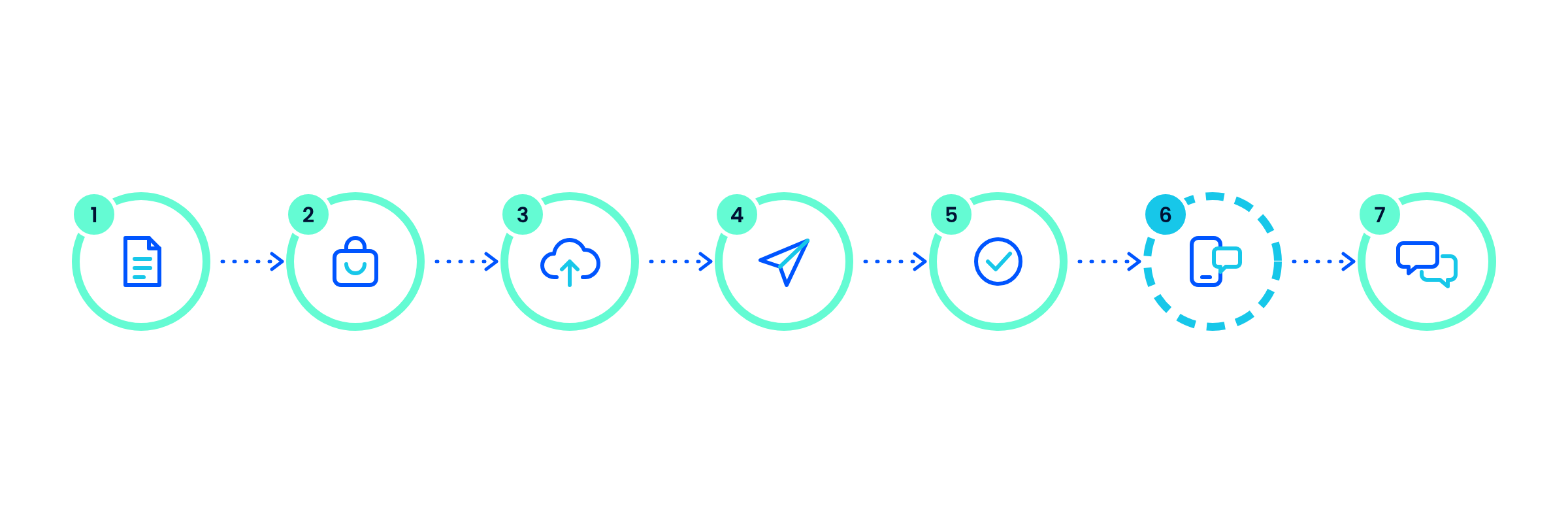
An API automation connects an approved template to a trigger in your business system. A webhook can report what happened to the message. If the customer replies, a chatbot or support agent can continue the conversation.
Here is how an automated shipping update works:
- Prepare the template. Submit a utility template such as "Hi {{1}}, your order {{2}} has shipped. Track it here: {{3}}" for Meta's approval.
- Detect the event. Your online store records that the order has shipped.
- Send the API request. Your backend sends the recipient's number, the template and the values to insert.
- Deliver the message. The customer receives the update, including a tracking button if the approved template has one.
- Track delivery. A webhook reports the status, which your system can save against the order.
- Handle failures. If delivery fails, your workflow can try a backup channel such as SMS, if your provider and setup support it.
- Handle replies. If the customer replies, a 24-hour customer service window opens. A chatbot or agent can continue the conversation in a shared inbox.
Appointment reminders, payment notices and OTP codes follow the same general process. The template, the trigger and the failure handling change with each workflow.
WhatsApp Business app vs API: which one to use
| Feature | WhatsApp Business app | WhatsApp Business API |
|---|---|---|
| Cost | Free basic tools. Meta Business Agent may add paid subscriptions later. | $28 per active sender per month, plus messaging fees |
| Greeting and away messages | Yes | Yes, through automation logic |
| Quick replies | Up to 50, sent manually | Automated replies using templates or chatbot logic |
| AI or chatbot replies | Meta Business Agent, where available | Chatbots or AI agents connected through the API |
| Event-triggered messages | No | Yes |
| CRM, store and backend integrations | Limited | Yes, through API requests and webhooks |
| Multiple agents | Through linked devices | Through a shared inbox |
| OTP and authentication codes | No | Yes, using authentication templates |
| Best for | Small teams handling chats by hand | Businesses automating messages through software, or working at scale |
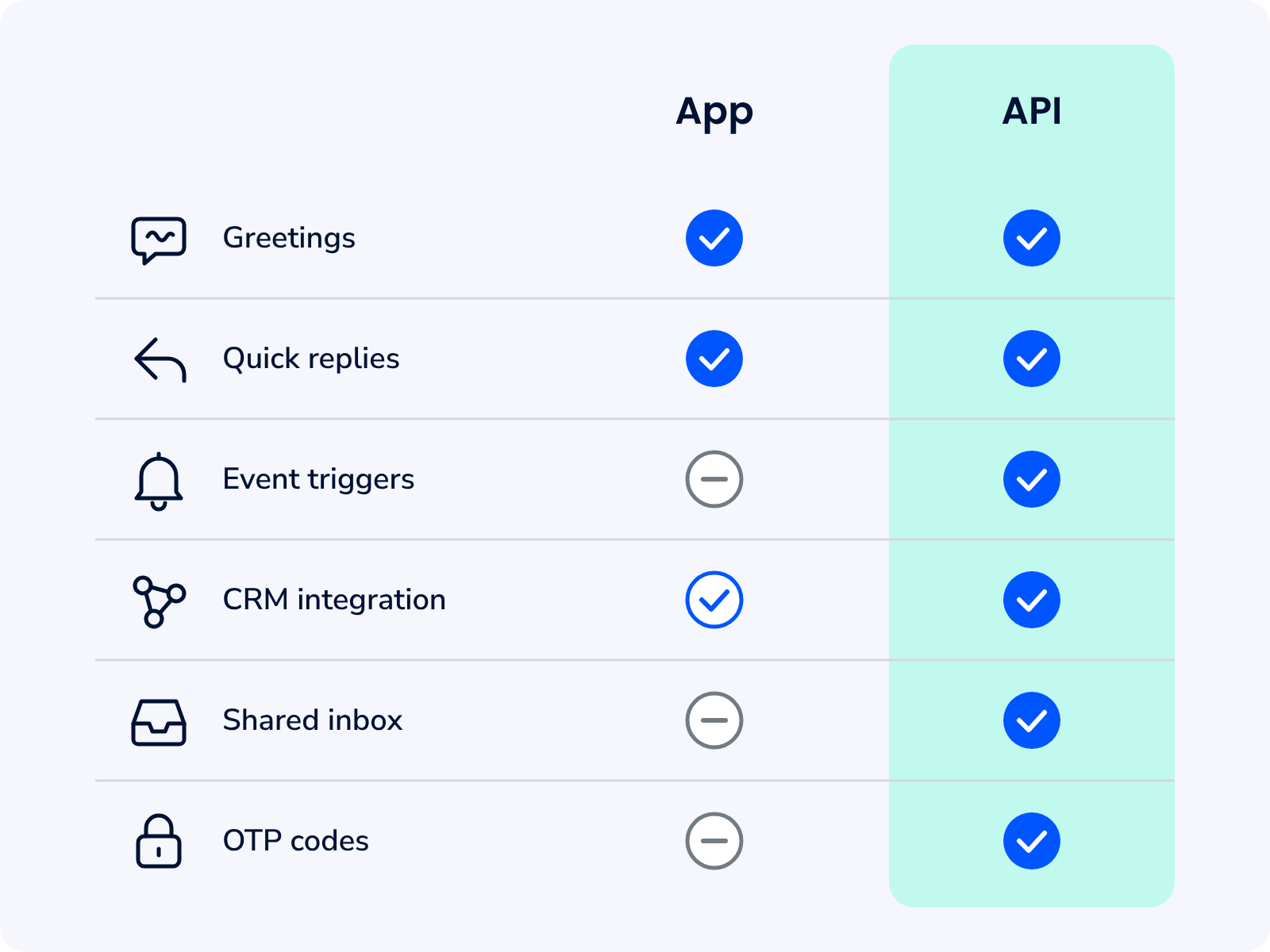
Choose the app if you mainly need greetings, away messages and reusable replies.
Choose the API if your systems need to trigger messages, several agents need to share one number, or you want more advanced automation.
The rules your automation has to follow
Before you automate WhatsApp messages through the API, learn Meta's rules for conversations, templates, opt-in and messaging limits.
The 24-hour customer service window
When a customer messages your business, a 24-hour customer service window opens. During that time, you can reply with free-form messages. After the window closes, you need an approved template to contact the customer again.
Template categories
Meta reviews each template and assigns one of three categories:
- Marketing: Promotions, offers and re-engagement campaigns.
- Utility: Transactional updates such as order confirmations and reminders.
- Authentication: Verification messages, including OTP codes.
Keep utility templates focused on the transaction. If a utility message includes promotional content, Meta may classify and bill it as marketing. Meta can also recategorize a template if its content does not match the assigned category.
Customer opt-in
Get the right opt-in before you send business-initiated messages. The opt-in should name your business and make clear that the person agrees to receive messages from you. Keep records of when and how each customer opted in, and make it easy for them to stop.
Messaging limits
Meta limits how many unique people a business can message outside the customer service window in a rolling 24-hour period. New business portfolios start at 250. The limit can rise to 2,000, 10,000, 100,000 and unlimited. Eligibility depends on business verification, message quality and usage.
Blocks and reports lower message quality and can reduce your future limit. Sending relevant messages to people who expect them protects both delivery and your ability to grow.
7 WhatsApp automations to set up first
| Automation | Trigger | Message type |
|---|---|---|
| Order and delivery updates | Order placed, shipped or delivered | Utility template |
| Appointment and payment reminders | Time before an appointment or due date | Utility template |
| OTP and login codes | Signup, login or password reset | Authentication template |
| FAQ chatbot with agent handoff | Incoming customer message | Free-form reply in an open window |
| Lead qualification | Click to WhatsApp ad or website button | Chatbot conversation |
| Abandoned cart recovery | Cart left without checkout | Marketing template |
| Re-engagement campaigns | Customer inactive for a set period | Marketing template |
Each workflow has its own messaging rules, so confirm the category before you send.
Which automation should you start with?
Choose based on the problem you want to solve:
- High support volume: Use an FAQ chatbot for common questions, with a route to a human agent through Dexatel Conversations.
- Missed appointments or late payments: Schedule reminders as utility templates with Dexatel Notify.
- Login or account verification: Use WhatsApp OTP through Dexatel Verify, with SMS as a backup channel.
- Low repeat purchases: Send opted-in campaigns through Dexatel Campaigns, including relevant offers and cart reminders.
Order updates, reminders and login codes are good starting points because customers already expect them. Add marketing automation once these workflows run reliably.
How to automate WhatsApp Business with the API, step by step
- Choose the right setup. The app works when people handle conversations. Choose the API when your software needs to send messages automatically or several agents need to share a number.
- Create your WhatsApp Business Account. Register through a provider, complete Meta's business checks, and add your phone number and display name. A number can't stay linked to the WhatsApp Business app and the API at the same time. Chat history from the app does not transfer.
- Plan your first workflows. For each one, note the trigger, the template category, the recipient and the team that handles replies. Start with two or three workflows.
- Prepare your templates. Give each template one clear purpose. Use variables for changing details and buttons for actions such as tracking an order. Submit each template for Meta's approval.
- Connect your systems. Set your backend or CRM to call the messaging API when the trigger occurs, with the recipient and template details in the request.
- Set up webhooks. Subscribe to message and delivery events so your system can record replies and track failures.
- Decide how replies are handled. Use a chatbot for common questions and route complex conversations to an agent.
- Set up fallback channels. For important messages such as OTP codes, configure a backup channel like SMS where your provider supports it.
- Review performance. Track delivery, read and reply rates, opt-outs and template quality. Change messages that people ignore, block or report.
Common WhatsApp Business automation mistakes
- Adding promotions to utility templates. Marketing language can get the template classified and billed as marketing.
- Messaging people who have not opted in. This puts message quality and your future messaging limit at risk.
- Running a chatbot with no way to reach a human. Customers should always be able to reach an agent.
- Relying only on WhatsApp for critical messages. Some recipients need a backup channel such as SMS.
- Launching too many automations at once. Start small, see what works, then expand.
How Dexatel helps you automate WhatsApp Business
Dexatel provides WhatsApp Business API access alongside SMS, Viber, RCS and other channels on one platform. You can:
- Manage templates. Create and submit templates in different languages through the dashboard or API, and track their approval status.
- Run different message flows. Use Dexatel Notify for reminders and updates, Campaigns for opted-in template messages, and Conversations for two-way chats with a multi-agent inbox.
- Connect to your systems. Use the REST API for messages, templates, campaigns and media. Webhooks report message status, and integrations can connect WhatsApp to your CRM, ERP or chatbot.
- Send authentication codes. Use Dexatel Verify to send OTP codes. You can set a fallback channel, such as SMS, in each API request, so a second channel can be tried if WhatsApp delivery fails.
Pricing
Dexatel charges a standard monthly fee of $28 for each active WhatsApp Business sender, whichever Dexatel product you use, including Verify. The fee is billed every month the sender is active, whether or not you send messages that month. WhatsApp messaging fees are charged on top, based on message volume and destination country. Every contract is negotiated individually, and Dexatel does not impose a universal minimum commitment. You pay Dexatel for all WhatsApp messaging fees. For current rates, check Dexatel's WhatsApp pricing page or contact the sales team.
To see how the setup works, visit Dexatel's WhatsApp Business API page, book a demo, or start for free.
FAQ
How can I automate my WhatsApp Business?
For basic automation, open the WhatsApp Business app, go to Business tools, and set up greeting messages, away messages and quick replies.
For messages triggered by your systems, chatbots or campaigns, use the WhatsApp Business API through a provider. You will need approved templates and defined triggers.
Is WhatsApp Business automation free?
The WhatsApp Business app includes free basic tools, such as greeting messages, away messages and quick replies.
The API is a paid service. Dexatel charges a $28 monthly fee for each active WhatsApp Business sender, plus WhatsApp messaging fees based on volume and destination country.
What is the 24-hour rule on WhatsApp?
When a customer messages your business, a 24-hour customer service window opens. During that window, you can reply with free-form messages. After it closes, you need an approved template to contact the customer again.
How can I send 10,000 messages on WhatsApp?
Use the WhatsApp Business API with approved templates, and only message people who have opted in. Meta's messaging limits set how many unique people you can contact in a rolling 24-hour period. New portfolios start at 250, and the limit can rise to 2,000, 10,000, 100,000 and unlimited. To reach 10,000 unique people in one day, your business must qualify for the 10,000 tier or higher.
Does the WhatsApp Business app have a chatbot?
Meta Business Agent is available to some WhatsApp Business app accounts. It can answer questions and help with certain requests, although availability varies.
If you need a chatbot connected to your own software and data, the WhatsApp Business API is the route.
Can I automate OTP codes on WhatsApp?
Yes. The API supports authentication templates for one-time passwords. With Dexatel Verify, you can set SMS as a fallback channel in the API request. Fallback improves coverage, but it does not guarantee delivery.


